Keyboard shortcuts
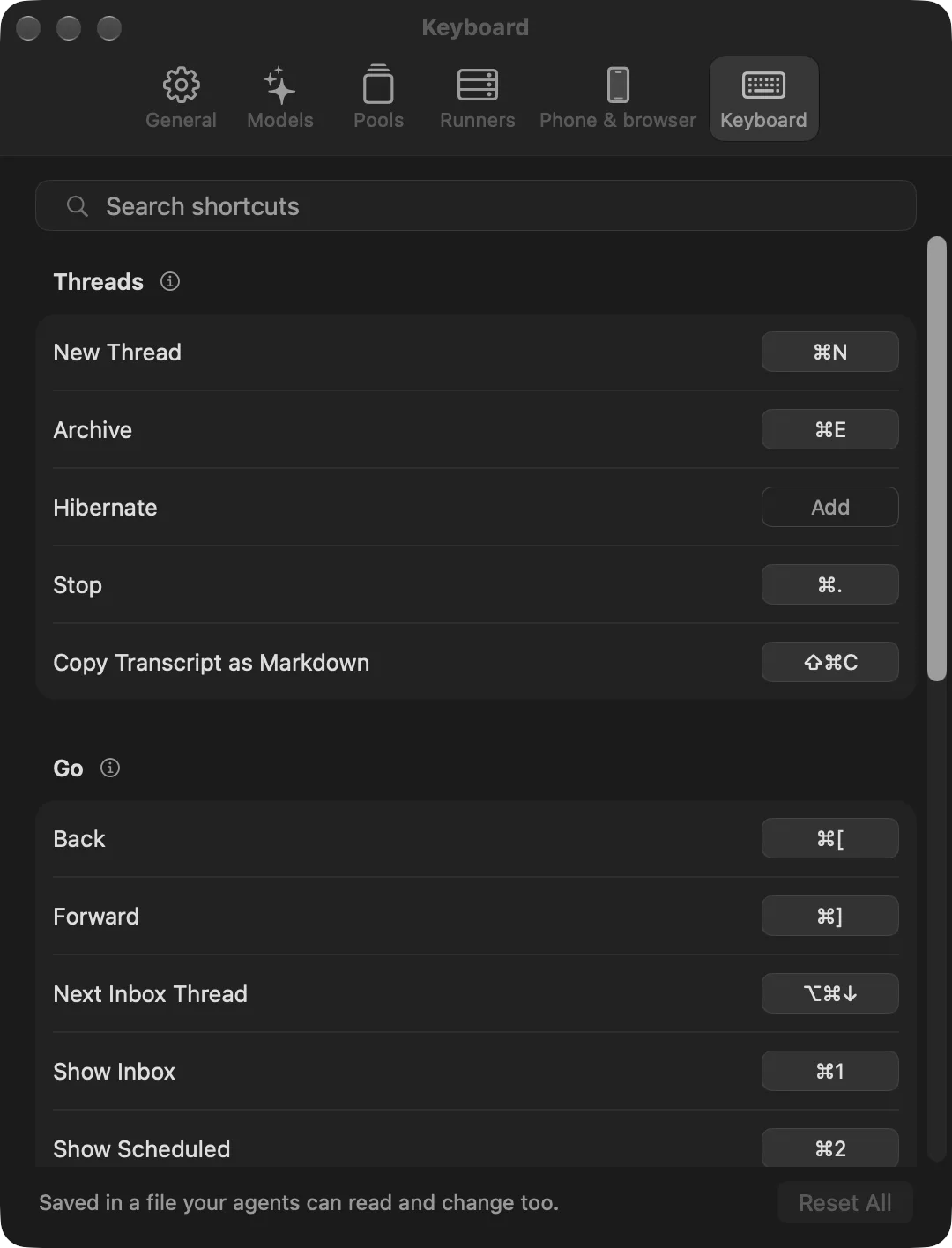
Hold ⌘ to see the keys beside the buttons that have them. Settings (⌘,) > Keyboard lists every command in the menus that can have a key, and you can change any of them there. Click a command's key and press the new one. Esc cancels, and Delete removes the key. A command with no key has an Add button, and one you've changed has Reset beside it.
A key has to include ⌘ or ⌃, or be a function key, otherwise it would type instead. If another command already has the key, it asks whether to give it to this one, which leaves the other with no key. Keys that something else needs, like ⌘C for Copy or ⌘← for moving the cursor, can't be used.
The keys you've changed are in shortcuts.json in Threadbear's data folder, so you can ask an agent to change them too, and a change to the file shows straight away. It holds only what you've changed, by the names below, and null means no key:
{
  "nextInboxThread": "ctrl+j",
  "archive": null
}- New Thread:
newThread, ⌘N - Archive:
archive, ⌘E - Hibernate (opens Pick a time):
hibernate, no key - Stop:
stop, ⌘. - Copy Transcript as Markdown:
copyTranscript, ⇧⌘C - Back:
back, ⌘[ - Forward:
forward, ⌘] - Next Inbox Thread:
nextInboxThread, ⌥⌘↓ - Open Anything (the new desktop app only, while its experiment is on):
openAnything, ⌘K, andopenAnythingAlso, ⌘P - Show Inbox:
showInbox, ⌘1 - Show Scheduled:
showScheduled, ⌘2 - Show Projects:
showProjects, ⌘3 - Show Librarian:
showLibrarian, ⌘4 - Show Hibernating:
showHibernating, no key - Show Archived:
showArchived, no key - Settings:
settings, ⌘, - Quit Threadbear:
quit, ⌘Q - Zoom In:
zoomIn, ⌘= - Zoom Out:
zoomOut, ⌘- - Actual Size:
actualSize, ⌘0 - Show Threads:
toggleThreads, ⌃⌘S - Collapse Threads:
collapseThreads, ⌘/ - Show Panels:
togglePanels, ⌥⌘P - Show Terminal:
toggleTerminal, ⌘J - Reset Panel Layout:
resetPanelLayout, no key
In the file, a key is its modifiers and then the key, joined with +: cmd, ctrl, opt and shift, then a character, or down, up, left, right, return, tab, space, delete, home, end, pageup, pagedown or f1 to f20.
The rest are every Mac app's own and can't be changed: the Edit menu's (⌘Z, ⇧⌘Z, ⌘X, ⌘C, ⌘V, ⌥⇧⌘V, ⌘A, with Start Dictation and Emoji & Symbols under them), ⌘W to close the window in front, ⌘M to minimize it, ⌃⌘F for full screen, and ⌘H and ⌥⌘H to hide. In Settings, the up and down arrows move through its sections.